

Tired of your Samsung phone forcing capital letters at the start of every sentence or username? Auto-capitalization is enabled by default on Galaxy devices, but you can turn it off in under a minute to get full control over your typing style.
This guide walks you through the exact steps to disable auto-capitalization on your Samsung phone. We cover both the built-in Samsung Keyboard and Google’s popular Gboard app.
Disabling this setting stops automatic capital letters after periods without affecting useful features like autocorrect, spell check, or swipe typing.
Follow the simple navigation paths below to update your settings and start typing exactly what you want—no unwanted upper-case letters required.
What you’ll learn
- Where the auto-capitalize setting hides inside Samsung’s Settings app
- How to turn it off on the Samsung Keyboard in 5 quick steps
- How to do the same on Gboard (in case that’s your keyboard)
- What changes (and what doesn’t) once the feature is off
Why bother turning off auto capitalization?
There’s no right or wrong here — it’s mostly personal preference. But there are a few situations where auto capitalization genuinely gets in the way:
- You type in multiple languages. The feature can misfire or conflict when you jump between keyboards.
- It slows you down. If you like your messages lowercase and casual, constantly fighting the shift key breaks your flow.
- It messes with formatting. Notes, code snippets, usernames, and styled text often need to stay exactly as you type them.
- You want a consistent style. Some people simply prefer one uniform look across all their chats, formal or not.
Whatever your reason, the fix is the same. Let’s do it.
Step 1: Open the Settings app
Find and tap the Settings icon on your Samsung phone. It looks like a gear and lives on your home screen or in the app drawer.
If you can’t spot it, swipe down from the top of the screen and tap the small gear icon in the quick settings panel — that opens the same place.
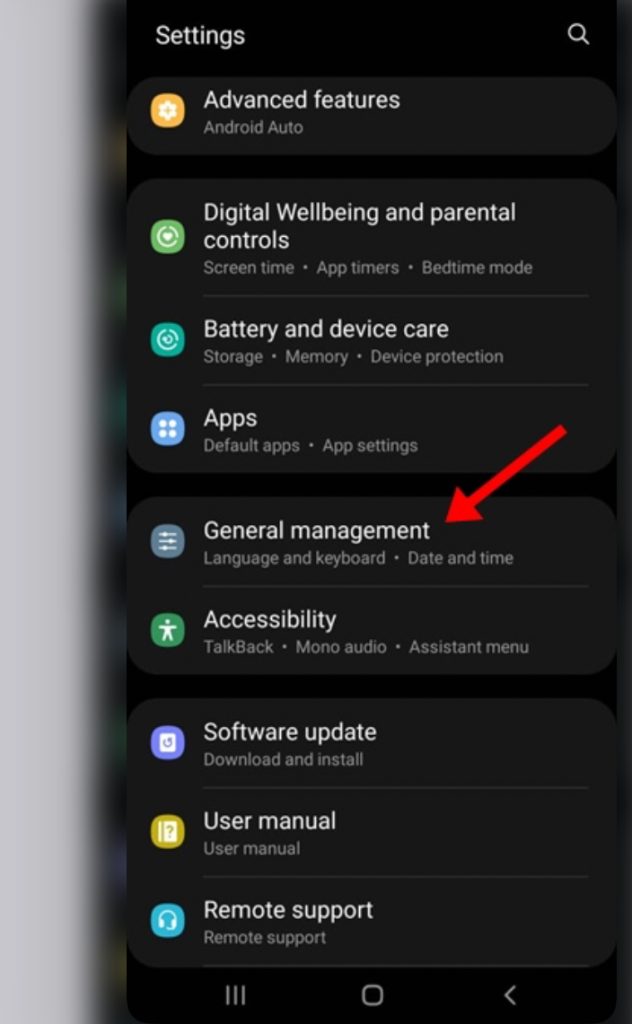
Step 2: Tap General management
Scroll down and tap General management. You’ll find it in the lower half of the Settings menu, between options like Apps and Accessibility.
This is the section that groups together everything about languages, keyboards, date and time, and resets.
Tip: In a hurry? Tap the search bar (magnifying glass) at the top of the Settings app and type “keyboard” — it will jump you straight to the keyboard settings, skipping a couple of these steps.
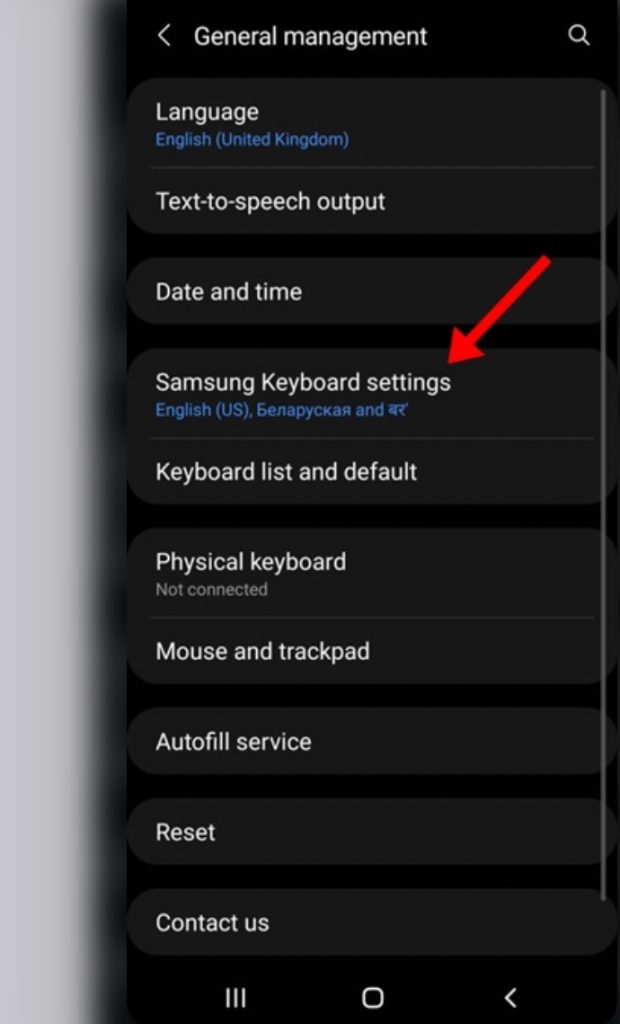
Step 3: Tap Samsung keyboard settings
Tap Samsung keyboard settings. On the General management screen, it’s the entry that lists your currently installed keyboard languages underneath it (something like “English (US), …”).
This opens the dedicated settings page for Samsung’s built-in keyboard — not your phone’s general keyboard list, but the Samsung Keyboard app itself.
Note: If you use Gboard or another keyboard app instead, these steps won’t apply — scroll down to Step 6 for the Gboard instructions.
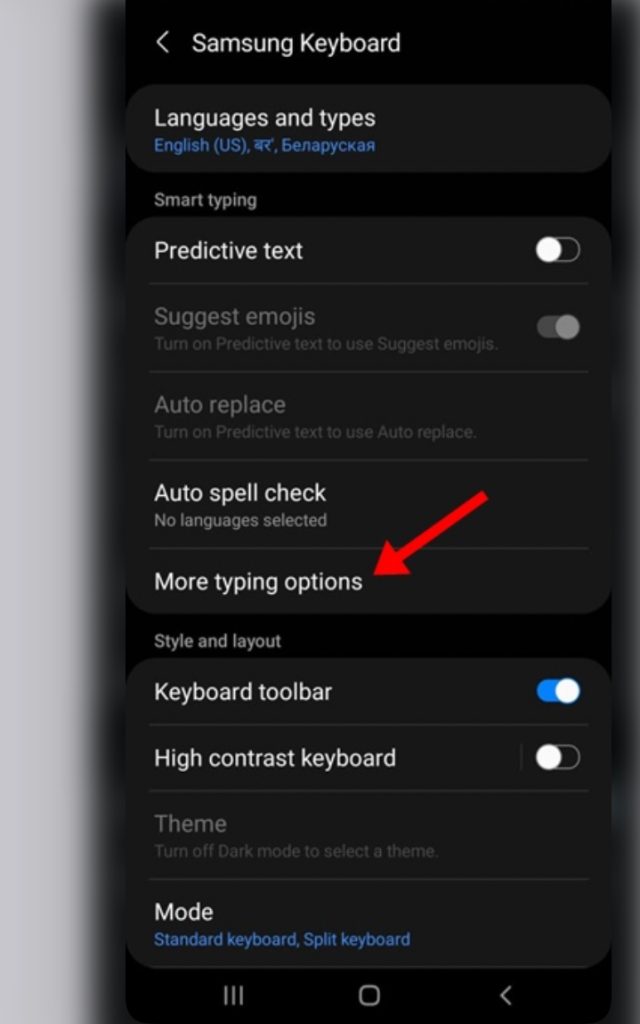
Step 4: Tap More typing options
Tap More typing options. You’ll see it under the “Smart typing” section, between options like Predictive text and Auto spell check.
This submenu holds the smaller, finer-grained typing behaviors — the ones Samsung keeps tucked one level deeper.
Step 5: Turn off the Auto capitalise toggle
Switch off the toggle next to Auto capitalise. The moment the toggle turns gray, you’re done — Samsung Keyboard will stop capitalizing the first letter of every sentence and every word it thinks deserves it.
Tip: Changed your mind later? This toggle works both ways — flip it back on anytime and auto capitalization returns instantly. No restart needed.
Step 6: Using Gboard instead? Open any messaging app
Open any app where you can type — Messages, WhatsApp, anything — and bring up the keyboard so Gboard is on screen.
Unlike Samsung Keyboard, Gboard hides its settings behind the keyboard itself, so you need the keyboard visible first.
Step 7: Tap the Settings gear on the keyboard
Tap the gear-shaped Settings icon on Gboard’s toolbar. If you don’t see the toolbar, tap the arrow or options icon on the keyboard first to expand it.
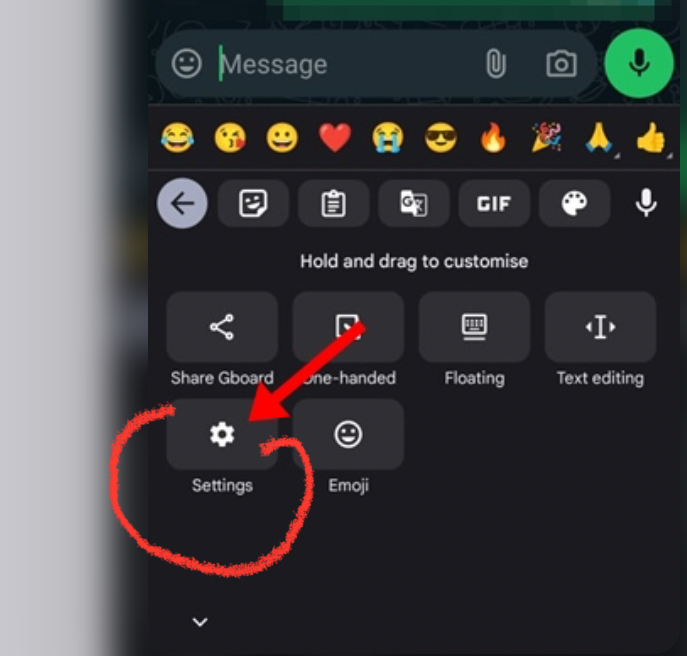
Can’t find the gear? Tap the three-dot (or arrow) icon on the left of Gboard’s suggestion bar to reveal the full toolbar — the Settings gear is one of the icons there.
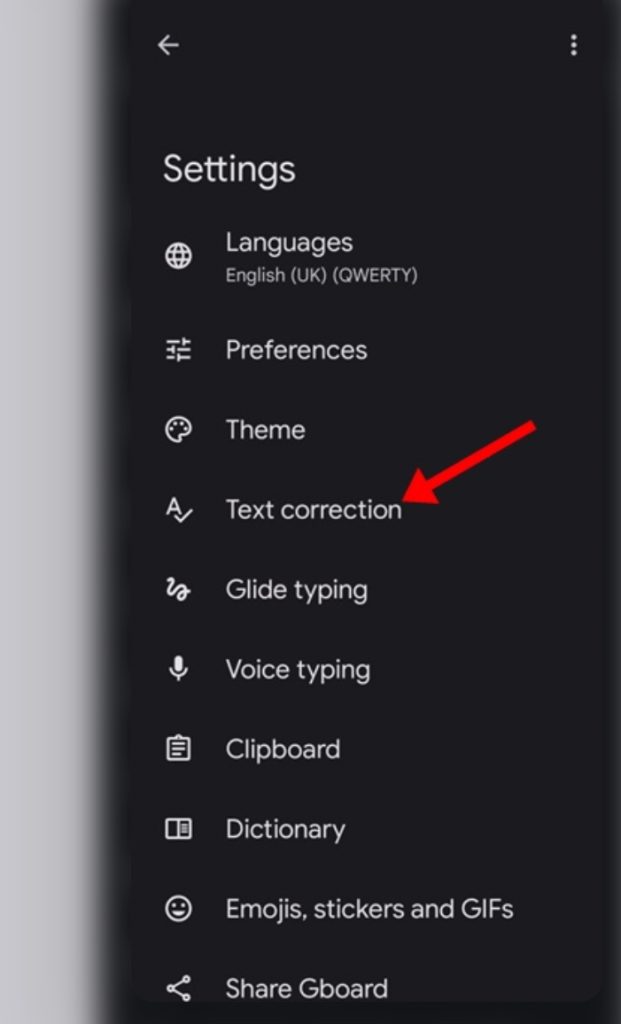
Step 8: Tap Text correction
Tap Text correction in the Gboard settings menu. It’s the option with the checkmark-style icon, sitting between Theme and Glide typing.
This is where Gboard keeps everything about how it fixes and adjusts your words as you type.
Extra tips for keyboard tinkerers
- The setting is per-keyboard, not per-phone. Turning it off on Samsung Keyboard won’t affect Gboard, and vice versa. Each keyboard app has its own toggle.
- Use a third-party keyboard like SwiftKey? Open the keyboard’s own app from your app drawer and look for a “Typing” or “Auto capitalize” option — it follows the same idea.
- Toggle stuck or not working? Go to Settings → Apps → Samsung Keyboard → Storage and tap Clear cache. This refreshes the keyboard without deleting any of your learned words.
- Not sure which keyboard you’re using? Open any chat, tap a text field, then check the notification shade or tap the keyboard icon in the bottom-right of the navigation bar — Android shows the active keyboard there.
What happens after you turn it off
Here’s what to expect once the toggle is off:
- Sentences start lowercase unless you tap the Shift key yourself. That’s the whole point — full control.
- The Shift key still works normally. Tap it anytime to capitalize a single letter, a word, or lock it on for ALL CAPS.
- Auto-capitalize after a period stops too. “new sentence. like this” stays exactly as typed.
- Other features are untouched. Autocorrect, predictive text, spell check, and glide typing all keep working as before.
- It applies everywhere on that keyboard — every app, every text field, no exceptions to hunt down.
FAQ
Will turning this off affect autocorrect?
No. Auto capitalization and auto-correction are separate toggles. Your keyboard will still fix typos; it just won’t force capital letters on you.
Can I turn auto capitalization back on later?
Absolutely. Follow the same steps and flip the toggle back on. The change is instant — no restart, no sign-in, nothing.
I turned it off, but words still get capitalized. Why?
You probably have more than one keyboard enabled. Check whether Gboard, SwiftKey, or another keyboard is also active — each one has its own auto-capitalize setting that needs to be switched off separately.
Does this work on all Samsung Galaxy models?
Yes. The path (Settings → General management → Samsung keyboard settings → More typing options) is the same across Galaxy S, Note, A, and Z series phones. Menu wording may vary slightly depending on your software version.
Will it stop capitalizing names like “john”?
Auto capitalization mainly targets the first word of a sentence. Names you type mid-sentence were never auto-capitalized, and they still won’t be — predictive text may still suggest capitalized versions, but that’s a separate feature.
Conclusion
That’s all there is to it: Settings → General management → Samsung keyboard settings → More typing options → flip off Auto capitalise — or the Text correction menu if you’re team Gboard. Under a minute, and your keyboard finally types the way you want it to.
If this guide saved you from one more wrongly capitalized “ok,” share it with a friend who’s been grumbling about the same thing — and drop a comment below if you hit a snag along the way. Happy typing!
