

Lent your Nokia 110 to a friend and now your recent calls list tells the whole story? Selling the phone, handing it down to a family member, or just tired of scrolling past last month’s numbers — there are plenty of reasons to wipe your call log.
The good news: on the Nokia 110 (and the Nokia 110 4G), clearing your call history takes less than a minute. You don’t need a computer, an app, or any technical know-how — just the phone’s own menu and a few presses of the selection keys.
In this guide, you’ll learn how to open your call logs, delete a single call entry, and clear every call at once, with notes on what actually gets deleted (and what doesn’t).
What you’ll learn
- How to open the Call logs menu on your Nokia 110
- How to delete one call from the list
- How to clear your entire call history in a few taps
- What deleting your call log doesn’t remove — and what to watch out for
Why bother clearing your call history?
A call log is a quiet little diary. It records who you called, who called you, when, and how many times. On a basic phone like the Nokia 110 that you might share, resell, or pass to a parent or child, that list says more about you than you’d probably like.
Clearing it regularly also keeps the phone tidy. The call log stores a limited number of entries, and old clutter makes it harder to find the number you actually need — especially on a small screen with physical keys.
Step 1: Open the menu from the home screen
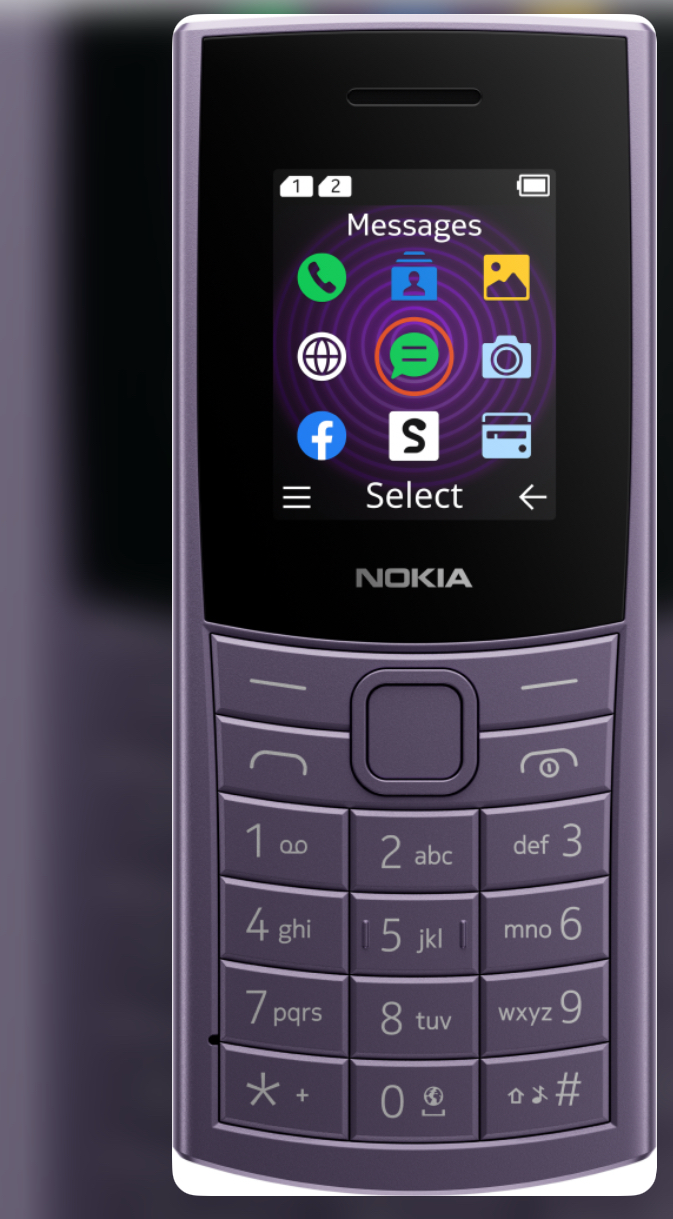
Unlock the phone and press the left selection key (the key labeled “Select” or “Menu” just under the screen).
From the idle home screen, this opens your phone’s main menu — the grid of icons that includes Messages, Contacts, Camera, and more.
Tip — the quick way in: You can also press the green call key from the home screen to jump straight to your dialled numbers list. Handy when you only want to tidy recent outgoing calls.
Step 2: Find and open “Call logs”
Scroll with the navigation (scroll) key until you reach the green phone icon labeled “Call logs”, then press the left selection key to open it.
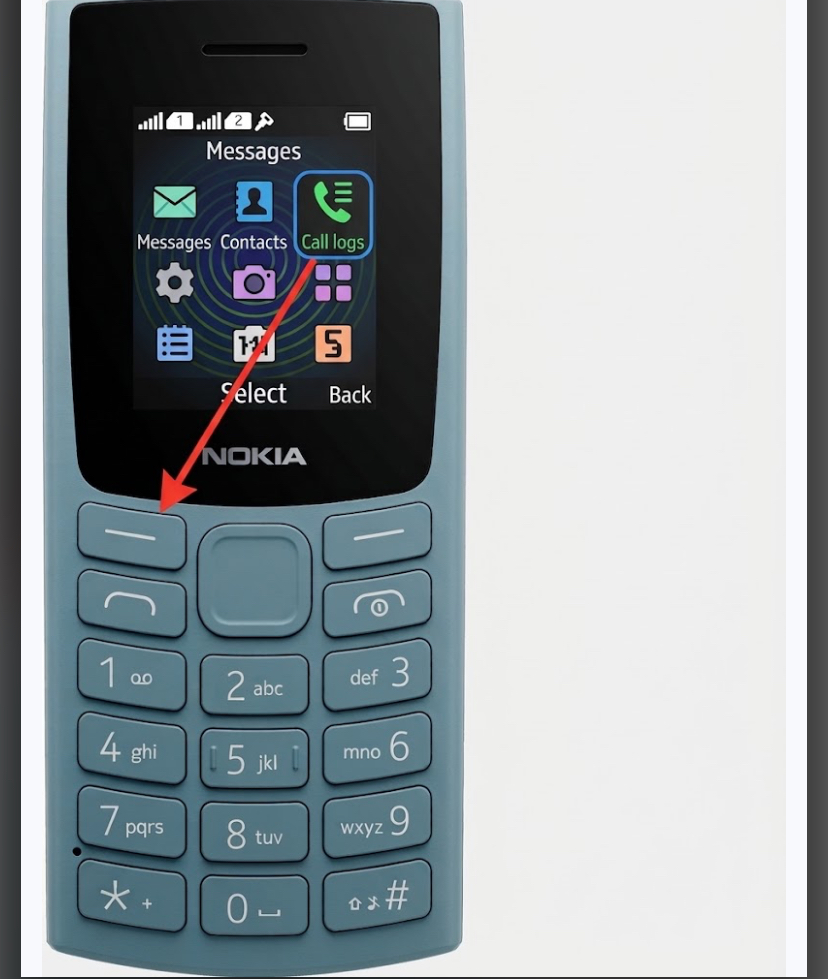
Can’t find it? The icon is a green phone handset, usually sitting in the top row of the menu grid right next to Contacts. If you keep scrolling and land back at the first icon, you’ve gone past it — just scroll the other way.
Step 3: Choose which call list you want to clean
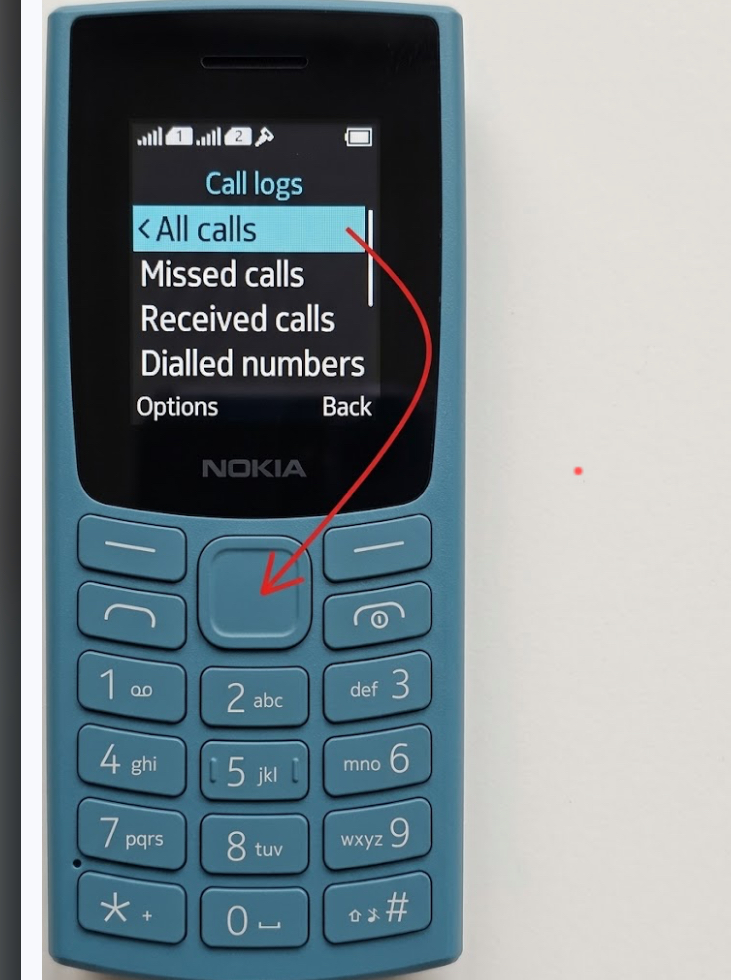
Press Select on “Call logs” and pick the type of calls you want to delete.
You’ll see separate lists, typically:
- All calls — every incoming, outgoing, and missed call together
- Missed calls
- Received calls
- Dialled numbers (outgoing calls)
Choose the one that fits — or pick All calls if you want a full sweep. The steps below work the same in any of these lists.
Step 4: Delete a single call entry
Scroll to the number you want to remove, press the left selection key (“Options”), choose “Delete”, and confirm.
You’ll usually see a short confirmation prompt asking if you’re sure. Press the left selection key again to confirm, and the entry disappears from the list.
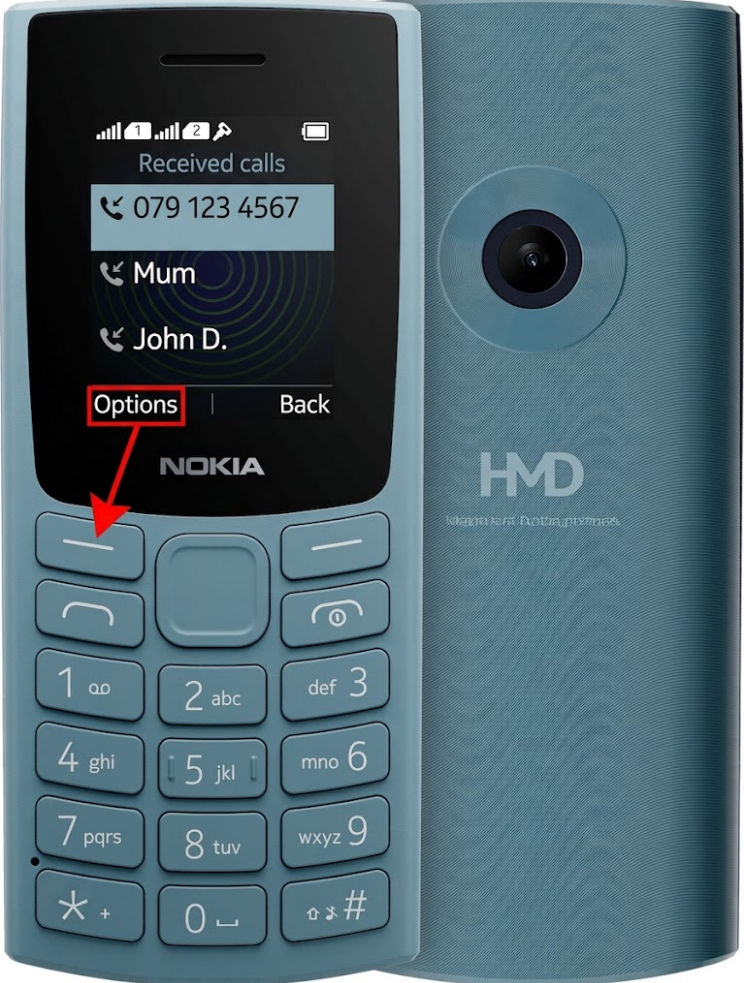
Watch the labels under the screen: On this phone the two keys directly below the display change their function depending on what’s on screen — one says Options/Select and the other Back. Always glance at the labels before pressing.
Step 5: Clear your entire call history
Open the call list, press Options, look for “Delete all” (or “Clear call log”), and confirm.
If you’d rather start fresh, you don’t have to delete entries one by one. From within a call list — or from the Call logs overview, depending on your software version — the Options menu includes a Delete all / Clear call log choice. Confirm it, and every entry in that list is wiped at once.
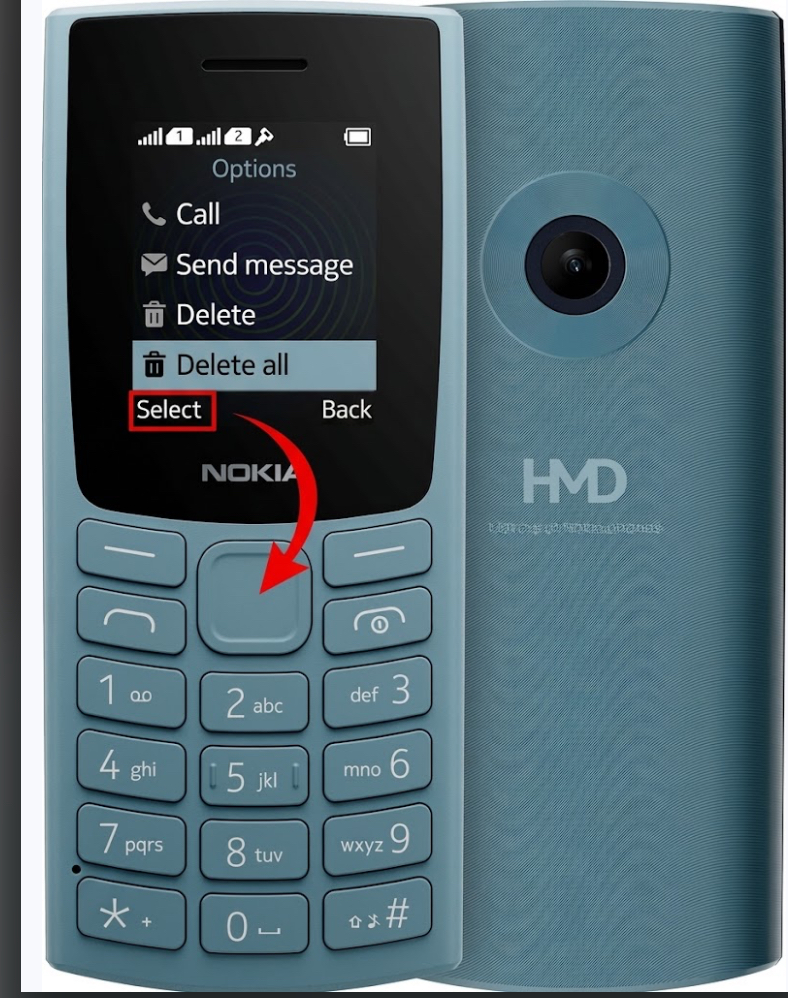
Tip: Repeat this in each call type (missed, received, dialled) if you want a truly clean slate — clearing “All calls” on some versions only affects the combined list.
Bonus: Extra tips for a tidy Nokia 110
- Save before you wipe. If a number in your log is worth keeping, open it, press Options, and choose Add to contacts before deleting anything.
- Speed-dial the people who matter. Once your log is clean, save important contacts to speed-dial slots via Menu > Contacts > Options > Speed dials so you never need to dig through history again.
- Lock the keypad. Pocket-dialing creates log entries (and embarrassment). Turn on the keyguard via Menu > Settings > Keyguard, and set a security code under Settings > Security so no one browses your log without permission.
- Selling the phone? Deleting the call log is only half the job — also remove your contacts and messages, then consider restore factory settings to erase everything in one go.
Things to know: what happens after you delete
- It’s gone for good. The Nokia 110 has no “recently deleted” folder or recycle bin. Once you confirm, the entry can’t be recovered from the phone itself.
- Your contacts are safe. Deleting call logs never touches the numbers saved in Contacts.
- Your carrier still has a record. Deleting the log on the phone doesn’t erase call records held by your mobile operator — those appear on your bill or usage statement.
- The counter resets. Missed-call indicators on the home screen disappear once the list is cleared.
- It won’t free up meaningful space. Call logs are tiny, so don’t expect a storage boost — but do it for privacy, not megabytes.
Frequently asked questions
Can I recover a call I accidentally deleted on my Nokia 110? No. Once deleted, a call entry is permanently removed from the phone’s memory. If you really need the number, check your paper or online phone bill — carriers keep their own call records.
Does clearing the call log delete my contacts too? No. Call logs and contacts are stored separately. Only the call entries are removed; everything in Menu > Contacts stays untouched.
Do these steps work on both the Nokia 110 and the Nokia 110 4G? Yes. The Nokia 110, Nokia 110 4G, and Nokia 110 4G (2024 / 2nd Edition) all use the same basic menu layout: Menu > Call logs, then Options > Delete or Delete all. Menu wording can vary slightly between software versions, but the flow is identical.
Is there a way to delete call history without opening the menu? You can press the green call key to jump straight to your recent (dialled) calls, then use Options > Delete from there. For a full wipe, though, the Menu > Call logs route is the most reliable.
Will deleting my call history remove my SIM card’s records? The log you see is stored on the phone, not the SIM. Deleting it doesn’t affect anything stored on the SIM itself (though most modern SIMs don’t keep call logs anyway).
Conclusion
That’s all there is to it: Menu > Call logs, pick your list, Options > Delete for one entry or Delete all for a full clean confirm, and your history is gone in under a minute. Whether it’s for privacy before a hand-me-down or just a bit of digital housekeeping, your Nokia 110 makes it refreshingly simple.
Found this guide helpful? Share it with a friend still rocking a trusty keypad Nokia and drop a comment below if a menu name on your version looks different. We love hearing which Nokia you’re using!