How to Use Google Translate Camera in 2026
 By Aminat KolawolePublished · 8 min read
Misplacing your phone triggers instant panic, but knowing how to find a lost iPhone quickly can turn a stressful situation into a fast recovery.
Losing access to your photos, financial apps, and daily contacts feels overwhelming, especially when you are unsure if your phone is simply on silent or completely out of reach. The good news is that Apple builds powerful tracking tools directly into iOS, meaning your device is rarely ever truly lost.
In this guide, I’ll walk you through exactly how to set up and use the camera translation feature in Google Translate, step by step. By the end, you’ll be able to translate printed text in dozens of languages in seconds — right from your phone’s camera.
What you’ll learn:
– How to download and set up Google Translate on Android or iPhone
– How to pick your source and target languages for camera translation
– How to use the camera button to translate printed text instantly
– How to translate text from photos you’ve already taken
Why Bother with Camera Translation?
Here’s the thing about translation apps: most people only ever use the typing feature. That’s a shame, because the camera tool is where Google Translate really shines.
Think about how often you run into text you can’t read in daily life — a package from an overseas seller, an instruction manual in another language, a street sign in a tourist area, a medicine label. Typing all of that out character by character could take minutes, and that’s assuming you even have a keyboard layout for that language. The camera feature skips all of that. You point, it reads, it translates — sometimes without you even taking a photo.
It’s also a lifesaver when you have no internet connection. Google Translate lets you download languages for offline use, so the camera feature keeps working even when you’re off the grid or dodging expensive roaming charges. Once you start using it, you’ll wonder how you ever traveled without it.
Step 1: Install Google Translate on Your Phone
Download the Google Translate app from your app store.
Head to the Google Play Store on Android or the App Store on iPhone and search for Google Translate. It’s completely free, so grab the official app from Google and install it like any other app.
Tip: The camera translation feature works on both Android and iOS, so it doesn’t matter which phone you use — the steps below are nearly identical on both.
Step 2: Set Up Your Languages
Open the app and choose your primary language and the language you translate most often.
The first time you launch Google Translate, it will ask you to set things up. Pick your primary language (the one you want translations shown in — for most readers here, that’s English) as the first language. Then choose the language you translate most often as the second one — for example, Spanish, French, or whatever you expect to run into most. If you’re not sure yet, don’t worry — you can change both languages anytime from the top of the main screen.
Once you’ve chosen, tap Finished. You’ll also see a Translate offline checkbox — it’s worth leaving this on, since it downloads the languages so they work without an internet connection.

Tip: You can tap the small arrow next to each language to browse the full list — Google Translate supports well over a hundred languages for typed text, and dozens for instant camera translation. If the language you want isn’t in the quick list, scroll or search for it.
Step 3: Tap the Camera Button
Tap the camera icon on the main screen to switch to camera translation mode.
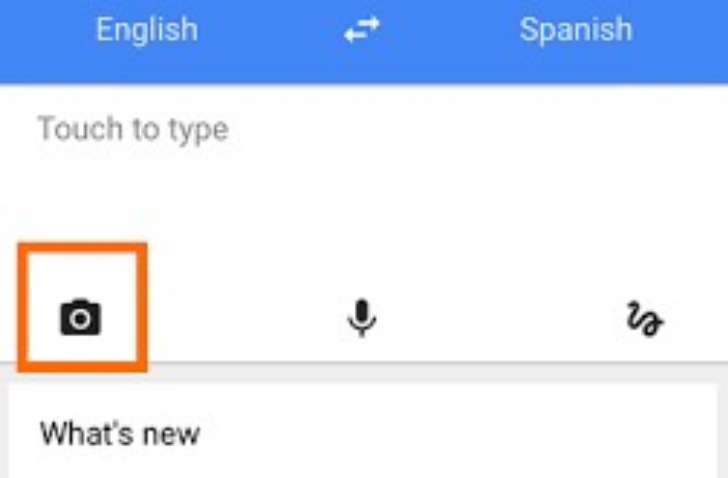
Once your languages are set, look at the bottom of the main screen. You’ll see a row of icons: a camera, a microphone, and a handwriting symbol. Tap the camera icon — that’s your gateway to translating anything you can point your phone at.
Tip: Can’t find the camera button? Make sure you’re on the app’s home screen — it’s the one with the “Touch to type” text box at the top. If the app opens on a different screen, tap the back arrow until you see the main translation view.
Step 4: Point Your Camera and Get the Translation
Point your camera at the text you want to translate and watch it get translated on the spot.

This is the fun part. Aim your phone’s camera at the sign, menu, label, or page you want to understand. Google Translate detects the text in the frame and replaces it on your screen with your chosen language — often live, without you even pressing the shutter button. Move your phone closer or further away until the text sits nicely inside the frame, and keep your hand reasonably steady for the clearest result.
Tip: If the live overlay isn’t working well — say the lighting is bad or the text is on a curved surface — you can also snap a photo first and then translate the still image. And remember: the translation only happens between the two languages you picked, so double-check the language pair at the top of the camera screen before you start.
That’s it — four steps and you’re done. From now on, anytime you run into text you can’t read, just open Google Translate, tap the camera, and point.
Bonus: Extra Tips to Get the Most Out of Camera Translation
Once you’ve got the basics down, a few small tricks will make your translations even better:
- Use good lighting. The camera needs to actually see the text clearly. Bright, even light — not harsh glare or deep shadow — gives much more accurate results.
- Hold steady and go slow. Quick jerky movements make the on-screen text flicker. Glide your phone smoothly across a page to translate line by line.
- Get close, but not too close. If text fills too much of the frame, the app may struggle to focus. Pull back until a whole line or block of text is visible.
- Snap first, translate later. If you spot text you’ll need again — like a long document or a sign on a moving bus — take a photo, then open it from your gallery inside Google Translate. You can translate photos you’ve already taken, which is perfect for translating screenshots too.
- Download languages before you travel. Tap the language pair at the top, then the download icon next to each language. Your translations will keep working on a plane, in the subway, or anywhere without a signal.
Things to Know: Limitations and Expectations
Camera translation is impressive, but it’s not magic. Here’s what to keep in mind so you’re not caught off guard:
- Handwriting is hit or miss. The camera feature works best on clean, printed text. Fancy fonts, cursive handwriting, and stylized logos often produce garbled results.
- Translations aren’t perfect. You’re getting a machine translation, which is great for getting the gist of a menu or sign — but don’t rely on it for legally binding documents or medical instructions.
- Not every language supports live overlay. Instant on-screen translation works for a large set of major languages, but some language pairs still require you to take a photo first and translate the image.
- It needs camera permission. If the camera screen stays black, check your phone’s settings and make sure Google Translate is allowed to use the camera.
- Offline mode needs a download. Translation without internet only works for the languages you’ve downloaded in advance — and downloads take up some storage space (Google warns you roughly how much before you confirm).
FAQ
Is the Google Translate camera feature free?
Yes, completely. The app is free to download, and camera translation doesn’t cost anything. You only need an internet connection (or a downloaded offline language pack) for it to work.
Which devices does it work on?
Google Translate with camera translation is available on both Android phones and iPhones. As long as your device can run the app and has a working camera, you’re good to go.
Can it translate without an internet connection?
Yes — but only for languages you’ve downloaded beforehand. Tap the language names at the top of the screen, then tap the download arrow next to the languages you want available offline.
Does it translate handwriting or only printed text?
It’s designed for printed text. It can sometimes read neat handwriting, but results are inconsistent. For handwriting, use the app’s dedicated handwriting input instead — you draw the characters on screen.
Why is my camera translation blurry or wrong?
The most common culprits are poor lighting, shaky hands, text that’s too far away, or unusual fonts. Move to better light, hold the phone steady, and make sure the text fills a good portion of the frame without being cut off.
Conclusion
And that’s the whole trick: install Google Translate, set your two languages, tap the camera button, and point your phone at any text you can’t read. In a matter of seconds, the mystery words become plain English — no typing, no dictionaries, no awkward pointing at strangers.
Once this becomes a habit, you’ll find yourself reaching for it everywhere — in restaurants, airports, grocery stores, and anywhere else the written word decides to be difficult. If this guide saved your next trip or your next takeout order, share it with a friend who’s heading abroad, and drop a comment below if you run into any snags or discover a clever use I didn’t mention. Happy translating!