How to Setup PPSSPP Games on Android
 By Aminat KolawolePublished · 7 min read
Setting up PPSSPP games on Android is straightforward, but improper file extraction or incorrect folder permissions on newer Android versions often lead to blank screens and unreadable game directories.
Whether you are using the standard or PPSSPP Gold app, this step-by-step guide walks you through installing the emulator, extracting your PSP files using ZArchiver, and fixing storage access permissions on Android 11, 12, and 13+.
Follow the simple steps below to get your games running smoothly at full speed with optimal graphics settings.
What you’ll learn
– How to install PPSSPP and ZArchiver from the Play Store
– Two ways to extract a zipped PSP game into a playable .iso file
– How to set up the PSP data folder so PPSSPP can see your games (this is where most people get stuck)
– How to browse, load, and launch your game — plus fixes for common hiccups
Why Bother Setting This Up Properly?
Skipping the folder setup is the #1 reason people think PPSSPP is “broken.” Since Android 11, Google restricts how apps access your storage — PPSSPP can’t just scan your whole phone anymore. It needs you to point it at one specific folder and grant permission. Do it once, correctly, and every game you add after that appears automatically.
It also keeps your saves safe. When you set up a dedicated PSP folder, your save data stays put even if you uninstall or update the app.
Step 1: Install PPSSPP and a File Tool from the Play Store
Grab the two apps you’ll need.
Open the Google Play Store and search for PPSSPP. Install the app called PPSSPP – PSP emulator (the free one, published by Henrik Rydgård — it’s the official open-source emulator).

Then search for ZArchiver and install that too — it’s a free archiving app that handles .zip and .7z files, which is how PSP games usually arrive.

Step 2: Extract the Game ZIP
Unzip the game — PPSSPP only reads .iso (or .cso) files, never .zip files directly.
PSP games almost always download as a compressed .zip. Inside is the actual game disc image, a .iso file (in our example, God of War – Ghost of Sparta, about 1.79 GB once extracted). You have two ways to decompress it:
Option A: Using Your Phone’s Built-in Files App (First Way)
- Open your phone’s Files app (sometimes called File Manager).
- Go to Internal storage > Download.
- Find the game
.zipand tap it (or long-press it and choose Extract). - Confirm the popup by tapping Extract, and wait for the progress bar to finish.


Tip: Extraction can take a couple of minutes for big games. Don’t switch away or lock the phone while it’s running, or the file may come out corrupted.
Option B: Using ZArchiver (Second Way)
- Open the ZArchiver app.
- Navigate to Download (or wherever your zip landed).
- Tap the game
.zip, choose Extract here from the menu, and let it finish.
Step 3: Set Up the PSP Data Folder in PPSSPP
Tell PPSSPP where its “Memory Stick” lives.
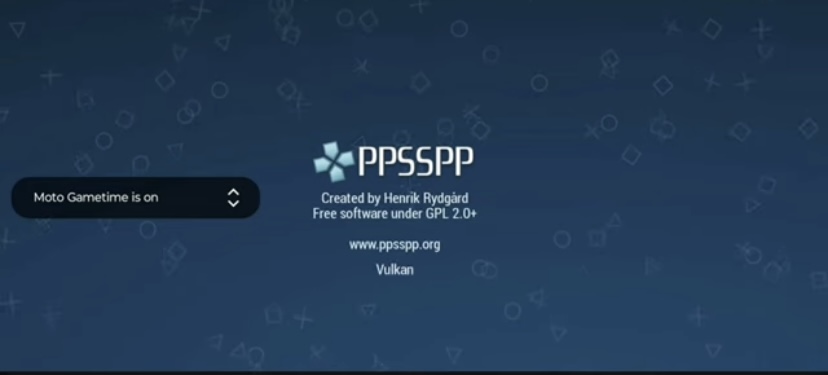
This is the step that confuses everyone, so go slow. When you open PPSSPP for the first time, you’ll see the splash screen, then a prompt asking “Choose where to keep PSP data (Memory Stick).”
Select Create or Choose a PSP folder and tap OK. (Don’t skip this — skipping buries your data in a hidden app folder that’s hard to reach.)

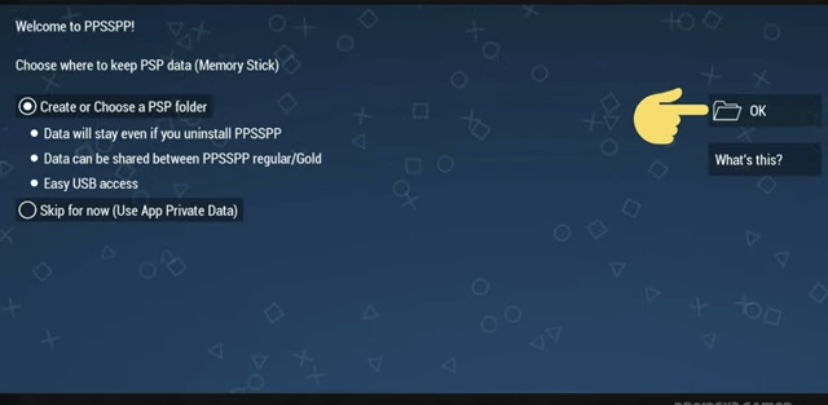
- In the storage window that opens, tap CREATE NEW FOLDER (the folder icon with a +).
- Name it exactly
PSP Gamesand tap DONE.

- Tap the USE THIS FOLDER button at the bottom.
- When Android asks “Allow PPSSPP to access files in PSP Games?” — tap ALLOW, then confirm with OK inside PPSSPP.

Why this matters: Since Android 11, apps can only read storage folders you explicitly grant. That one ALLOW tap is the permission that makes everything else work. If you ever update Android and your games “vanish,” re-granting this folder fixes it (more on that below).
>
Can’t find this prompt? If you tapped “Skip” earlier, no problem — go to Settings > System > Memory Stick Location inside PPSSPP any time and run through the same steps.
Step 4: Move the .ISO File Into Your New Folder
Housekeeping — put the game where PPSSPP is looking.
- Open your Files app and go to Internal storage > Download.
- Long-press the extracted file (or tap the ⋮ menu next to it) and choose Move to.
- Navigate to Internal storage > PSP Games and tap Move here.
Tip: Keep the
.zipif you’re short on space? Delete it. Once the game file is safely in the folder, the zip is just dead weight — the game plays from the game file only.>
Note: Never extract the
.isoitself into loose files — PPSSPP needs to run the disc image directly.
Step 5: Browse and Launch Your Game
The moment of truth.
- Open PPSSPP again.
- Make sure you’re on the Games tab, then tap the Browse… button (the folder icon at the top).

Select your PSP Games folder, tap USE THIS FOLDER, and tap ALLOW on the permission popup.

PPSSPP will scan the folder and show your game as a nice banner or icon.
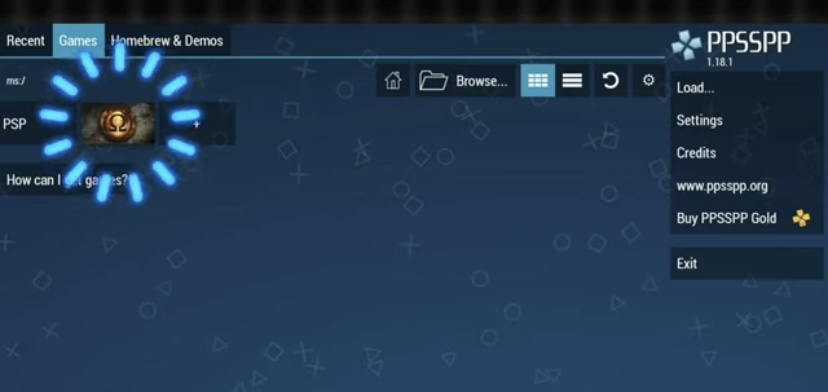
- Tap the game icon — it launches. That’s it. You’re playing a PSP game on your phone.
Can’t see your game? Pull down to re-scan, or double-check the file really is (not still zipped). Also confirm the file actually finished moving — a half-copied 1.7 GB file won’t show up.
Bonus: Pro Tips for a Better Experience
- Backend: In Settings > Graphics, try Vulkan first — it’s the default and usually fastest on modern phones. If a game glitches or feels choppy, switch to OpenGL; some devices and games behave better with it.
- Resolution: Cranking Rendering Resolution to 2x or 3x makes PSP games look shockingly crisp on a big screen. If your phone struggles, drop back to 1x.
- Gamepad: PPSSPP supports Bluetooth controllers out of the box. Pair one, then map buttons under Settings > Controls.
What Happens After: Things to Know
- Saves live in the PSP folder. Your in-game saves and save states are stored inside your
PSP Gamesfolder (in subfolders likeSAVEDATAandPPSSPP_STATE). Back that folder up and you never lose progress. - Don’t sync that folder with Google Drive or OneDrive. Cloud sync apps can lock files mid-save and corrupt your progress. Copy backups manually instead.
- Uninstalling PPSSPP won’t delete your folder — since you created it in shared storage, your games and saves survive. That’s exactly why we set it up this way.
- Games may disappear after a big Android update. Not lost — just inaccessible. Open Games > Browse, pick your folder again, tap ALLOW, and everything reappears.
- Performance varies by game. Lightweight titles run flawlessly on mid-range phones; heavy hitters (God of War, Gran Turismo) want a decent chip and benefit from Vulkan.
FAQ
Is PPSSPP free? Is PPSSPP Gold better?
Both are the same emulator — Gold is a paid version that simply supports the developer. There’s no performance difference.
My game shows a black screen or won’t load. What do I do?
First, make sure you’re launching the .iso file itself, not a folder of extracted files. Next, update PPSSPP from the Play Store, and try switching the graphics backend (Vulkan ↔ OpenGL) in Settings > Graphics. Avoid the “Speedhacks” options — they break more than they fix.
Can I play PS1, PS2, or Vita games on PPSSPP?
No — PPSSPP emulates the PSP only. Each console needs its own emulator.
Can I put games on my SD card instead?
Yes — just browse to the SD card folder in Step 5 instead. One tip from the PPSSPP community: keep games on the SD card but your save data on internal storage, since saving to a slow card can cause stutter.
My touch controls feel cramped. Any fix?
Yes — go to Settings > Controls > Touchscreen and adjust button size, opacity, and position, or enable floating analog sticks.
Conclusion
That’s the whole journey: install PPSSPP and ZArchiver → extract the zip to .iso → create and grant the PSP Games folder → move the game in → browse and tap to play. Ten minutes of setup, and your phone just became a PSP with a better screen.
If this guide got you up and running, share it with that one friend who’s still stuck on a black screen — and drop a comment below if you hit a snag I didn’t cover. Happy gaming, brother!