How to Send Files via Bluetooth on Tecno 455
 By Aminat KolawolePublished · 10 min read
Ever snapped a great photo on your Tecno 455, only to realize you have no Wi-Fi, no mobile data, and no USB cable to share it? It is a frustrating moment, but you do not need an active internet plan or extra apps to send your files. Your phone already has a built-in feature designed for this exact situation which is Bluetooth.
Bluetooth file transfer has been around for years, and it’s still one of the most reliable ways to move photos, music, videos, and documents between two nearby devices — completely free, with zero internet required. The best part? Everything you need is already on your Tecno 455. No apps to download, no accounts to create.
In this guide, I’ll walk you through the entire process from start to finish: turning Bluetooth on, finding your file, sending it, and making sure it actually arrives on the other device. By the end, you’ll be able to share files with any Bluetooth-enabled phone or computer in under two minutes.
What you’ll learn:
– How to turn on Bluetooth and make your Tecno 455 visible to other devices
– How to send photos, music, and documents using the Share menu
– How to pair with another device and accept incoming files
– What to do when a transfer fails or a device won’t show up
Why Bother with Bluetooth?
Before we jump into the steps, let’s be clear about why this old-school feature is still worth knowing:
- It costs nothing. No data bundles, no subscriptions, no app purchases. Bluetooth uses short-range radio waves, so it works even when your network is down.
- It works with almost everything. Phones, laptops, tablets, car stereos, speakers — if it has Bluetooth, you can likely send files to it.
- It’s private. Your files travel directly between the two devices. Nothing gets uploaded to a cloud server or passes through a third party.
Sure, it’s slower than Wi-Fi or a USB cable for huge files. But for a batch of photos or a few songs, Bluetooth is often the fastest option simply because there’s nothing to set up.
Step 1: Open the Menu on Your Tecno 455
Press the Menu key from the home screen.
From your phone’s main home screen, press the Menu soft key (it’s usually the left selection key right under the screen, sometimes marked with a small grid or lines icon). This opens the main menu — the grid of icons where all your phone’s tools live.
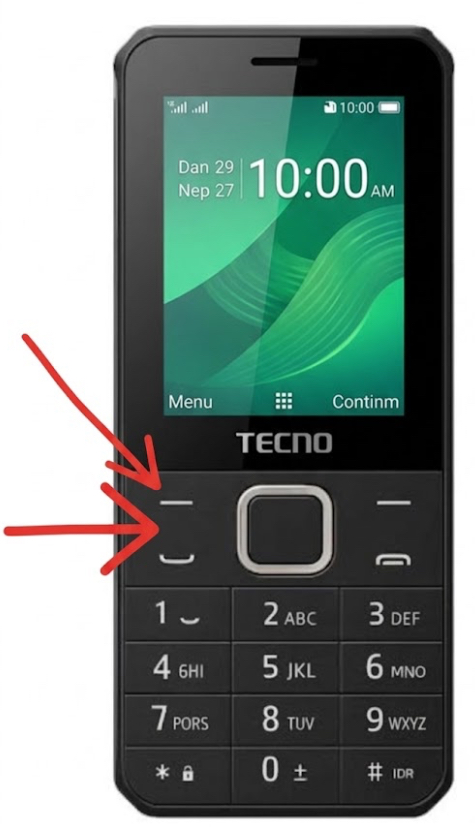
If your screen is locked, press OK/Unlock first and enter your unlock code if you have one set.
Tip: On some Tecno 455 units, pressing the navigation pad (the round directional key) from the home screen also opens the Menu. If the left soft key doesn’t respond, try the center/OK button.
Step 2: Find and Open Settings
Scroll through the Menu until you see the Settings icon.
Use the navigation pad (up, down, left, right arrows) to move through the menu icons. You’re looking for Settings — usually a gear or spanner/wrench icon. Once it’s highlighted, press OK to open it.
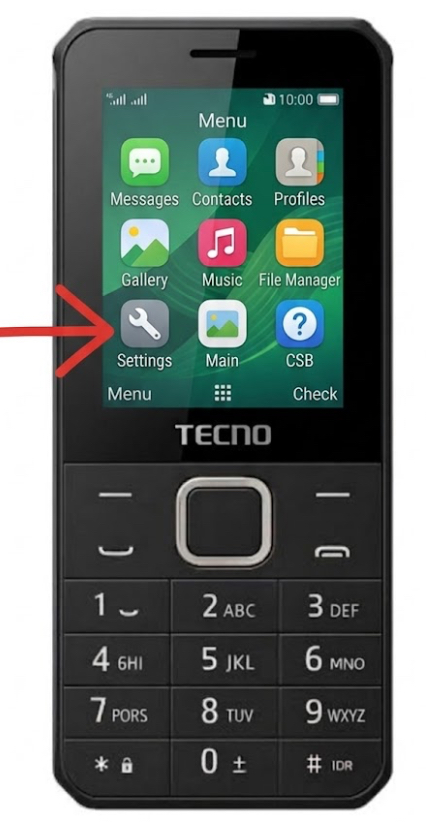
Inside Settings you’ll see categories like Phone, Display, Security, and Connectivity (on some models it’s simply called Phone settings or General).
Can’t find Settings? Look for it inside the Tools or Organizer folder on the menu instead — some Tecno layouts keep it there. It’s always there somewhere; just scroll the full list once.
Step 3: Turn On Bluetooth and Make Your Phone Visible
Open the Bluetooth menu, switch it On, and set visibility to Shown to all.
Inside Settings, scroll to Connectivity (or Bluetooth directly, depending on your software version) and press OK. You’ll see a Bluetooth option — open it and switch Bluetooth to On using the navigation key or the Options → Turn on command.
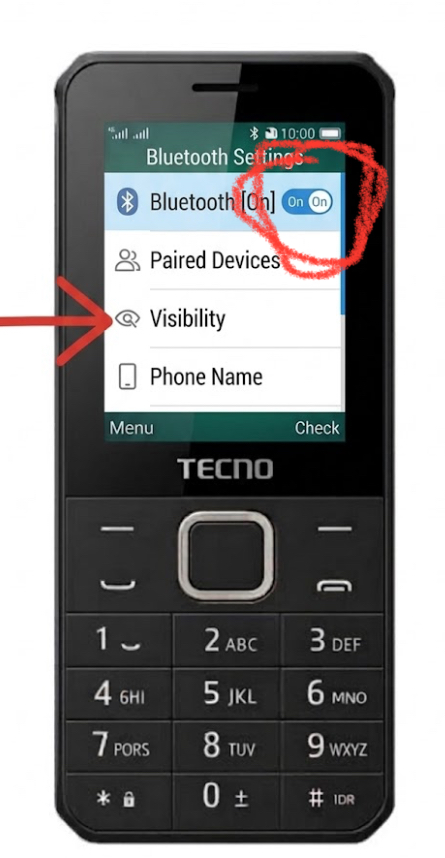
Next, look for Visibility, Discoverable, or My phone’s visibility in the same menu and set it to Visible to all or Shown to all for at least a few minutes. This lets the other device see your phone when it searches.
Once it’s active, you’ll notice a small Bluetooth icon (a stylized “B” rune) appear at the top of your screen.
Tip: Make sure your phone’s Bluetooth name is recognizable. In the Bluetooth menu, look for My phone’s name and rename it to something the other person will recognize — like “Mama’s Tecno” — so they pick the right device in a crowded list.
Step 4: Find the File You Want to Send
Open your file manager or Gallery and locate the file.
If you’re sending a photo or video, open the Gallery (or Photos) app, scroll to the picture you want, and stop on it. If you’re sending a song, a PDF, or any other file, open the File Manager (sometimes called File Explorer or Files) and browse to the folder where it’s saved.
On Android-based Tecno models, you can also reach your files through Settings → Storage, which shows everything grouped by type — photos, music, videos, and other files.
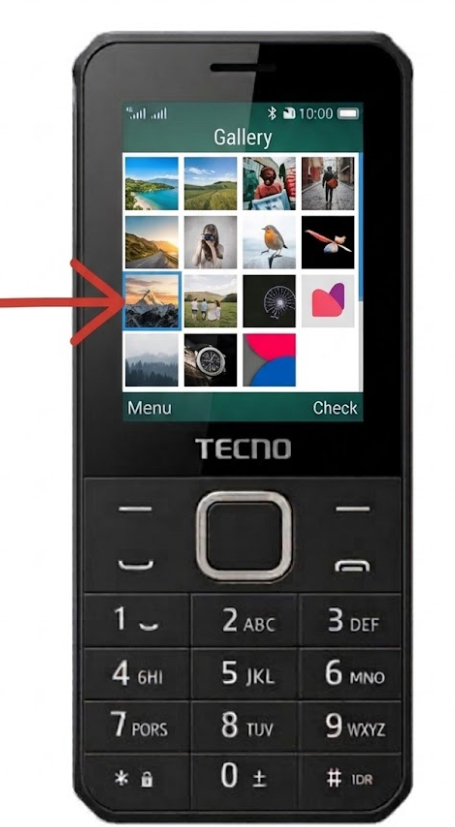
Note: Can’t find the File Manager? Look in your Tools folder on the Home Screen.
Step 5: Open the Share Menu and Choose Bluetooth
Select the file, then tap Options → Send → Via Bluetooth.
On the Tecno 455, highlight the file you want and press the Options soft key (usually the left selection key). From the list that appears, choose Send, then pick Via Bluetooth. On touchscreen Tecno models running Android, the flow is similar: tap the file, tap the Share icon (it looks like three dots connected by lines), and then tap Bluetooth from the sharing options.
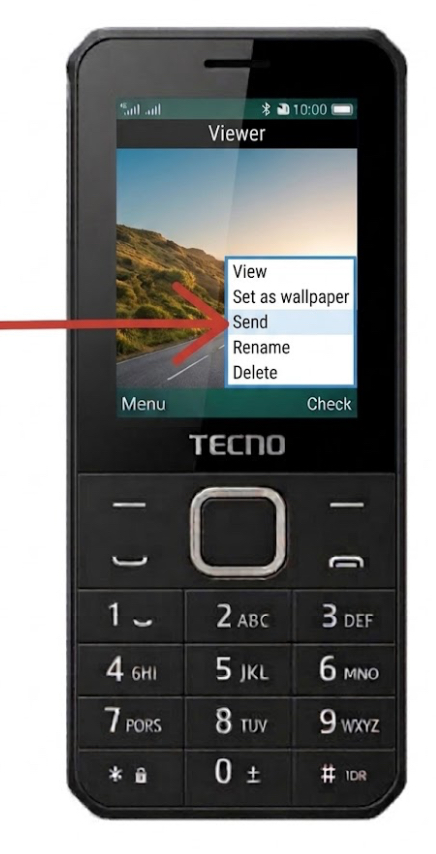
Tip: Sending more than one file? On most models you can mark multiple items first — look for Mark, Select multiple, or press and hold the # or OK key on the file, then repeat for each extra file before choosing Send → Via Bluetooth.
Step 6: Choose the Receiving Device and Pair
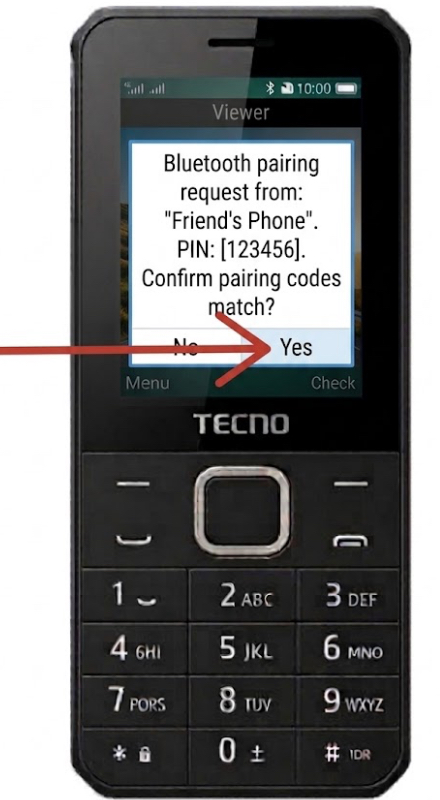
Pick the target device from the list and confirm the pairing codes match.
Your Tecno 455 will now scan for nearby Bluetooth devices and show a list. Scroll to the phone or computer you want to send to and select it.
If the two devices have never been paired before, both will display a passkey or PIN — a short number like 0000 or a random 6-digit code. Check that the same number appears on both screens, then confirm with Yes/OK on both devices. Once paired, they’ll remember each other, so you won’t need to do this again.
Can’t see the other device? Make sure Bluetooth is switched On on both devices, that the receiving device is set to Visible/Discoverable, and that the two phones are within about 10 meters (33 feet) of each other with no thick walls in between. If it still doesn’t appear, switch Bluetooth off and on again on both devices and re-scan.
Step 7: Accept the File on the Receiving Device
Tell the other person to tap Accept — and wait for the transfer to finish.
The moment you confirm the send, a notification pops up on the receiving device saying something like “Incoming file from [your phone name]” with the file name and size. The recipient must select Accept (or Yes) quickly — many phones cancel the request automatically after about 15 seconds of no response.
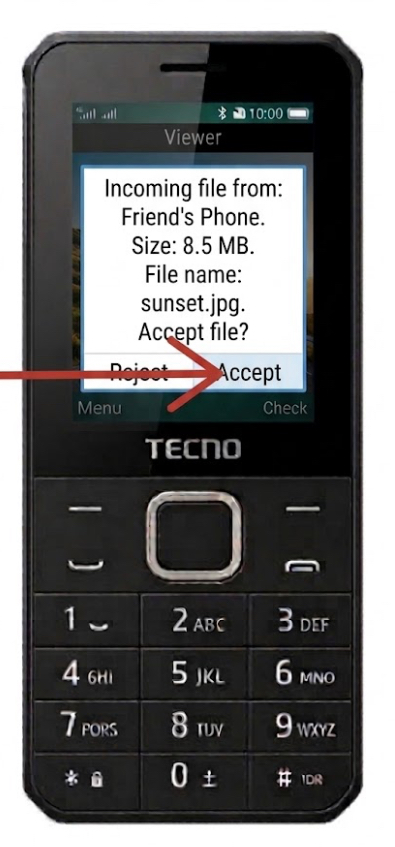
Once accepted, you’ll see a progress bar on both screens. Keep the phones close and don’t lock the screen or walk away until you see Transfer complete or Sent on your Tecno 455.
Step 8: Confirm the Transfer and Find the Received File
Check that it says “Sent” — then locate the file in the Bluetooth folder.
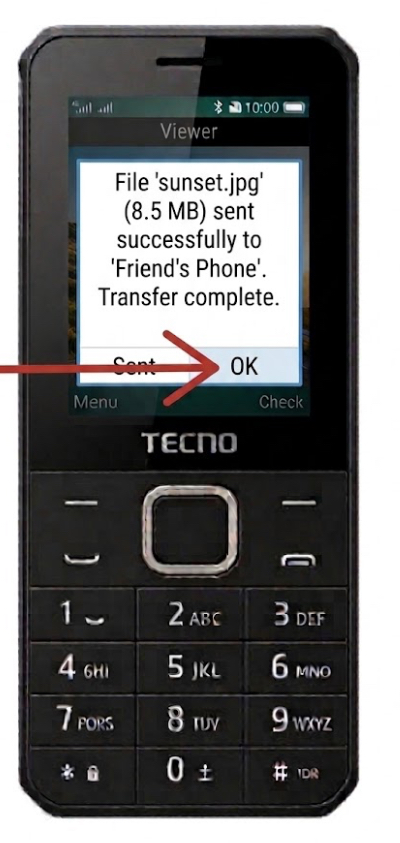
Once the progress bar disappears, your Tecno 455 should show Transfer complete or Sent. That means the file made the trip successfully. If you see Failed or Not sent, scroll back up to Step 6 and re-select the device — the two phones probably drifted apart or the request timed out.
Now check that the file actually arrived on the other phone. Received files usually land in the Bluetooth folder inside the other device’s File Manager, or directly in their Gallery (for photos) or Music (for songs). If they can’t spot it, open their File Manager and sort by date — the newest file is yours.
Note: Bluetooth sends the exact original file with no compression, so a photo arrives at full quality — great if the other person wants to print it later.
Bonus: Pro Tips for Faster, Trouble-Free Transfers
- Send small batches. Bluetooth handles a handful of photos beautifully, but sending 200 files at once is asking for a dropped connection. Group your files into batches of 10–20.
- Keep the phones still and close. Don’t put one in your pocket and walk around mid-transfer. Signal drops are the #1 cause of failed sends.
- Disconnect other Bluetooth gadgets. If your phone is busy talking to a wireless headset or speaker, temporarily disconnect it — your Tecno 455 can only focus on so many Bluetooth conversations at once.
- Rename your phone something friendly. “Tecno 455” is fine, but “Mama’s Phone” is much easier to spot in a crowded Bluetooth list at a family gathering.
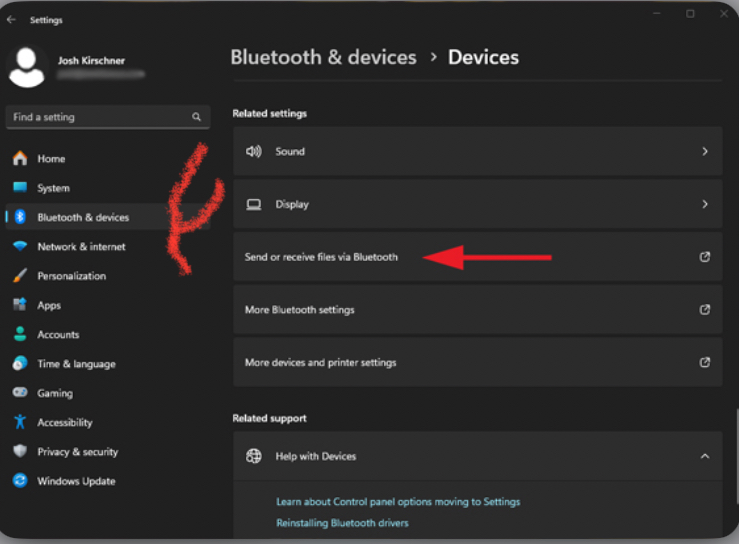
- Receiving files FROM a computer? On Windows, go to Settings → Bluetooth & devices → Devices, then click Send or receive files via Bluetooth → Receive files before sending from your phone. On Windows 11, you may need to click Show more options on a right-clicked file to find Send to → Bluetooth device.
What Happens After: Things to Know
Bluetooth transfers are safe and simple, but set your expectations correctly:
- It’s slow for big files. An 8 MB photo takes a few seconds, a 25 MB song under ten seconds, but a 1 GB video can take several minutes. For anything huge, use a USB cable or Wi-Fi instead.
- The file keeps its original quality. Unlike WhatsApp or email compression, Bluetooth sends the exact original file — great for printing photos later.
- The receiving device must “understand” the file. A PDF needs a reader app on the other phone; a song needs a music player. If the file arrives but won’t open, the problem is the other device’s apps, not your transfer.
- Turn Bluetooth off when you’re done. Leaving it on all day drains your battery slightly and, on older phones, makes you visible to strangers nearby.
Frequently Asked Questions
Can I send files from my Tecno 455 to an iPhone
Unfortunately, no. iPhones don’t support classic Bluetooth file transfer (they use AirDrop instead, which only works between Apple devices). Send to Android phones, feature phones, or computers instead.
Why does the transfer keep failing at 99%?
This usually means the receiving device ran out of storage space, or the two phones drifted too far apart. Free up some space on the receiving phone, keep both devices side by side, and try again.
Do I need mobile data or Wi-Fi to use Bluetooth?
Not at all. Bluetooth is completely independent of your SIM card and internet connection. It works in airplane mode, in the village, anywhere.
Where do received files get saved on my Tecno 455?
Most Tecno phones save incoming Bluetooth files in a folder called Bluetooth inside File Manager. Photos may also appear automatically in your Gallery.
How far apart can the two phones be?
Roughly 10 meters (about 33 feet) is the reliable range — and less if there are walls or other electronics causing interference. Closer is always better.
Can Tecno T455 play Java game?
Yes.
Conclusion
That’s all there is to it: open the Menu, go to Settings, switch Bluetooth on, find your file, choose Send → Via Bluetooth, pick the other device, accept the file, and confirm it arrived — eight simple steps from the Menu to a finished transfer, no internet required. Once you’ve done it a couple of times, it’ll become second nature, and you’ll wonder why you ever stressed about sharing photos without data.
Did this guide work for your Tecno 455, or did you hit a step that looked different on your phone? Drop a comment below — your question might be exactly what another reader needs. And if this helped you, share it with a friend who’s still struggling to send that one photo.