How to Find a Lost iPhone
 By Aminat KolawolePublished · 9 min read
Losing your phone is an instant loss, but knowing how to find a lost iPhone brings immediate relief. Whether it slipped out of your pocket or was left in a ride-share, quick action is key to recovering your device.
The panic sets in when you call your number and hear nothing especially if the device is set to silent or the battery is dying. You need a fast, reliable way to pinpoint its location before it disappears for good.
Fortunately, Apple’s built-in location system lets you track, ping, and secure your phone in real time from any browser or secondary Apple device. Even offline or powered-off phones can still be located using the global Apple network.
Follow this quick guide to locate your missing iPhone, force it to ring, and lock down your sensitive data right now.
What you’ll learn
– How to use Apple’s Find My from any Android browser via iCloud.com
– How to play a sound, mark your iPhone as lost, or erase it remotely
– How Google Maps Timeline can hint at where your iPhone has been
– Which phone tracker apps to set up before (yes, before) you lose your phone
Why You Should Care (and Act Fast)
Here’s the uncomfortable truth: every minute your iPhone sits lost, the odds of getting it back tick down. The battery drains, the phone gets moved, or worse — someone picks it up and walks away with your photos, messages, and banking apps.
Find My is Apple’s official tracking tool, but a lot of people assume it’s locked inside the Apple ecosystem. It isn’t. Apple runs the whole thing through iCloud.com, a website that works on any browser — Windows laptop, library computer, or your buddy’s Android. As long as Find My was switched on on your iPhone before it went missing (it’s on by default on modern iPhones), you can locate it from literally any internet-connected device.
The sooner you act, the better your chances. So let’s get to it.
Step 1: Open a Web Browser on Your Android
Grab your Android phone and launch any web browser — Chrome, Firefox, Samsung Internet, whatever you normally use. You don’t need to install anything; everything happens on a website.
Tip: If you’re borrowing someone else’s Android, ask them if you can use private/incognito mode before you sign in. It keeps your Apple ID details from being saved on their phone.
Step 2: Go to iCloud.com and Sign In
Type icloud.com into the address bar and tap the black Sign In button. Then enter the Apple ID email and password you use on your missing iPhone — the same ones you’d type into the App Store.
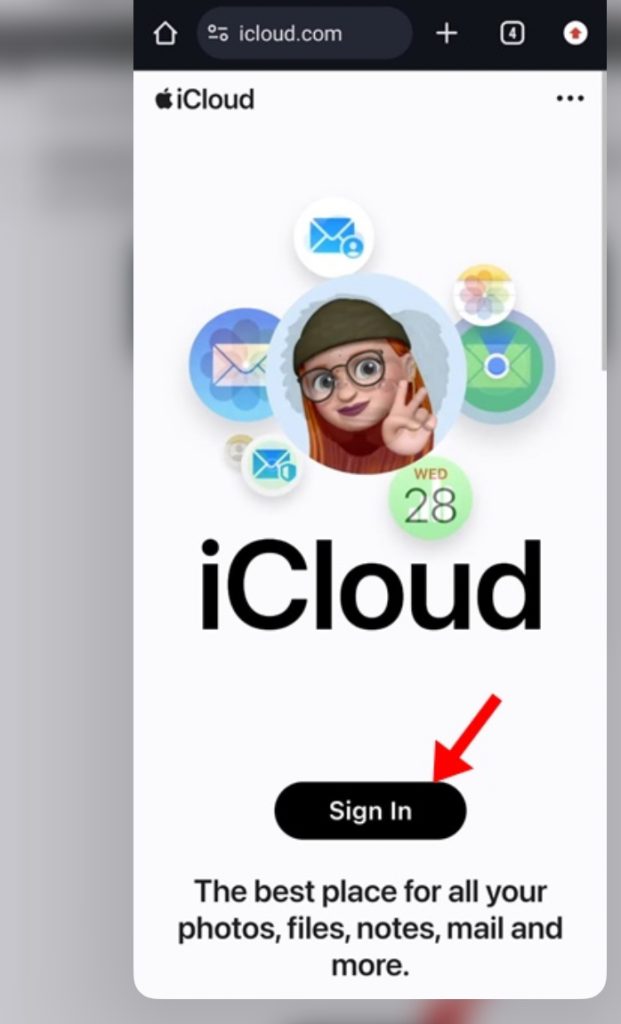
Note — can’t get a verification code? If two-factor authentication sends a code to your lost iPhone, look at the sign-in screen for a “Find Devices” / “Find My” option — Apple lets you access the location feature without the code. You can also choose to have the code sent to another trusted device or phone number linked to your account.
Step 3: Trust the Browser (or Don’t)
Once you enter your credentials, Apple asks, “Trust this browser?”
- Tapping Trust means you won’t need a verification code next time you sign in from this device — convenient on your Android.
- If this is a borrowed phone, tap Not Now or Do not trust instead. You’ll just verify again next time.

Step 4: Open Find My
After signing in, you’ll land on the iCloud home screen with a grid of app icons — Photos, Drive, Notes, and so on. Tap the Find My icon (the green radar-looking one).
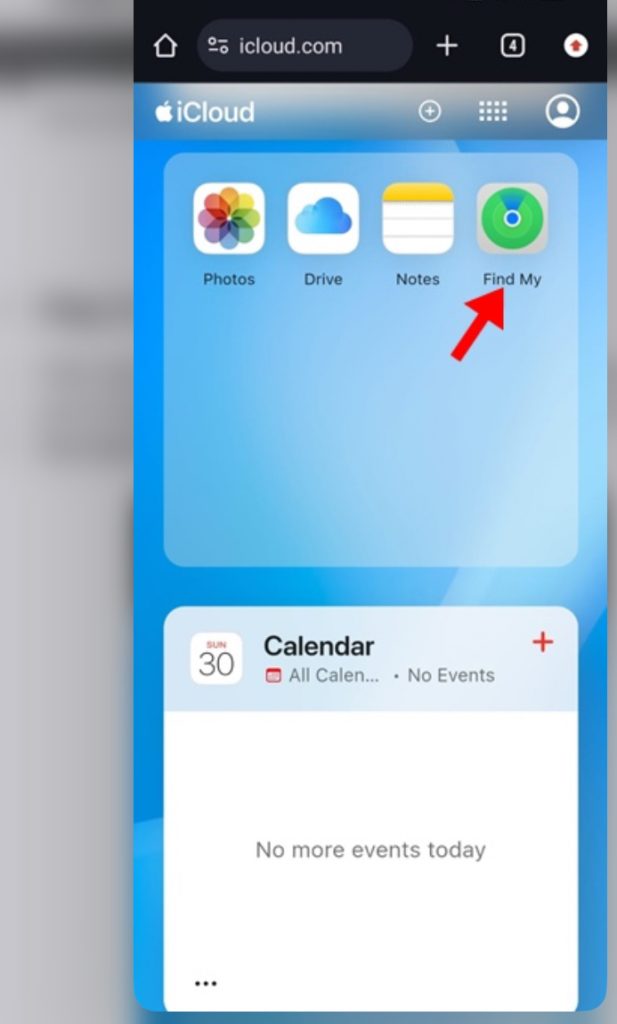
Tip: Don’t see the icons? Tap the grid icon (⋯) at the top right to reveal the full app menu.
Step 5: Pinpoint Your iPhone on the Map
Give it a few seconds — the map zooms in and shows your iPhone’s current (or last known) location, along with its name, the time it was last seen, and its battery level.
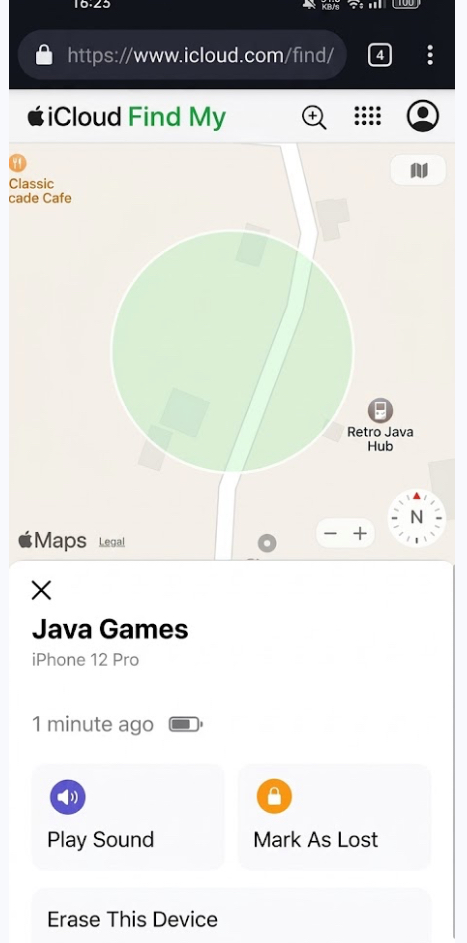
If the dot is somewhere familiar — your office, your friend’s house, the café from this morning — great, go get it. If it’s on the move or somewhere strange, keep reading before you dash out the door.
Step 6: Take Action — Sound, Lost Mode, or Erase
Tap your iPhone’s name in the map panel and you’ll get three powerful options:
- Play Sound — makes the iPhone ping loudly for a few minutes, even if it’s on silent. Perfect for “it’s somewhere in this house” situations.
- Mark As Lost — locks the screen with a passcode and displays a custom message with a callback number, so an honest finder can reach you. Apple Pay is suspended too.
- Erase This Device — the nuclear option. Wipes all your data so no one can snoop. Only do this if you’re sure it’s gone for good — and note that after erasing, you can no longer track it.
Tip: If the iPhone shows as offline, don’t panic. Its last known location is stored, and you can toggle “Notify me when found” to get an alert the moment it connects again.
Step 7 (Plan B): Trace Its Steps with Google Maps
If Find My shows nothing — maybe Find My was off, or the phone’s dead — there’s a backup worth trying, but only if Google Maps was installed on your iPhone with Location History turned on (it’s off by default, so this only helps some people).
- Open the Google Maps app on your Android.
- Tap your profile picture in the top-right corner.
- Select Your Timeline.
Your Timeline shows everywhere the iPhone (well, your Google account) has been recently. It won’t give you a live dot on the map, but it tells you the last places your iPhone visited — a strong hint about where you left it.
Step 8 (Prevention): Set Up a Tracker App for Next Time
Third-party phone trackers — apps like Life360 or similar location-sharing services — can show your iPhone’s location from an Android app and add extra remote controls. The catch: they must be installed and configured before the phone goes missing, so this one is about future-proofing, not today’s crisis.
Once your iPhone is back in your hands, install one, set it up, and invite your own devices. Most require a subscription for the full feature set, but it’s cheap insurance against round two.
Bonus Tips to Make Recovery Even Easier
- Turn on the Find My network (Settings → [Your Name] → Find My → Find My iPhone → Find My network). It can locate your iPhone even when it’s offline, by anonymously pinging nearby Apple devices.
- Share your location with family through Find My, so a parent, partner, or child can help you search from their device too.
- Know your Apple ID. Sounds obvious, but in a panic, people blank. Store it in a password manager you can reach from anywhere.
- Keep a current backup (iCloud or computer). If you end up erasing the phone, a backup makes getting a replacement painless.
What Happens After: Things to Know
Before you go full detective, set your expectations:
- Find My only works if it was enabled before the loss. No Find My, no tracking — the Google Maps trick or a pre-installed tracker app would be your only leads.
- An online iPhone is a findable iPhone. Location updates require the phone to have power and an internet connection. Offline devices show their last known position instead.
- The person holding your iPhone won’t know you’re checking its location — silently viewing the map sends no notification. Playing a sound or marking it lost, however, happens right on the device.
- Don’t confront a thief. If the map shows your phone in a stranger’s home or on the move, take the location to the police rather than knocking on doors yourself.
- Erasing is permanent for your data on that device — recoverable only by restoring from a backup on a new phone.
Frequently Asked Questions
Can I find my iPhone from an Android without the Find My feature turned on?
Not through Apple. Find My is the only official tracking channel, and it must have been enabled beforehand. Your fallbacks are Google Maps Timeline (if Location History was on) or a third-party tracker app you’d already installed.
What if my iPhone is dead or has no signal?
Find My shows the last known location, which is stored for a limited time, and you can enable “Notify me when found.” If the Find My network was on, another Apple device passing nearby may still pick up its signal.
Will someone know I’m tracking the iPhone?
No. Checking the map from iCloud.com is invisible. Only actions like Play Sound, Lost Mode, or Erase actually change anything on the phone.
Can I sign in to iCloud on a friend’s Android safely?
Yes just tap Do not trust the browser, use private browsing if available, and sign out when you’re done (tap your profile icon → Sign Out).
Does marking my iPhone as lost erase my data?
No. Lost Mode locks it and displays your contact info, but everything stays on the phone. Erasing is a separate, deliberate action you control.
Conclusion
Losing your iPhone feels awful — but if Find My was on, your Android’s browser is all you need: open iCloud.com, sign in, tap Find My, and you’ll see your iPhone on a map with options to ring it, lock it, or erase it. Add the Google Maps Timeline trick and a preventive tracker app, and you’ve covered nearly every scenario.
If this guide saved your sanity (or your iPhone), share it with that one friend who’s always losing things — you know the one. And drop a comment below if you have questions or a recovery story of your own. Good luck out there.